


If you've just taken delivery of a Starlink Standard (Gen 3) for the homestead, the farm office, the granny flat or the workshop — congrats. For most of regional Australia, this is the first time real broadband has actually arrived. The kit is straightforward, but the difference between a great install and an average one comes down to where you mount the dish and how you run the cable.
Here's the practical Aussie walkthrough.
TL;DR — The Five Steps
- Activate the kit in the Starlink app using your KIT number
- Find a mount location with a clear view of the entire sky
- Mount the dish — temporary first, then permanent
- Run the cable into the house and plug into the Gen 3 router
- Connect to the "STARLINK" wi-fi, set a password, and run a speed test
What You Get in the Box
- The Starlink Standard Gen 3 dish (with built-in kickstand)
- The Gen 3 wi-fi 6 router
- Cable from dish to router (length varies — usually about 15 m)
- Power supply for the router
- Quick-start card with KIT number
You'll need a roof mount kit, a wall mount or a pole mount as a separate purchase if you're going permanent. Starlink sells official mounts; aftermarket options like J-mounts and ridge mounts also work well in Australian conditions.
Step 1 — Activate Before You Mount
Download the Starlink app, sign into your account, and activate your kit using the KIT number on the box label. Choose the Residential plan if this dish is going to live at one address. Activation takes a couple of minutes and means the dish will start working the second you plug it in.
Step 2 — Find Your Sky View
The Gen 3 dish has a roughly 110° field of view — wider than the Mini, more tolerant of partial obstructions, but still hates trees in the middle of its sky window. The single biggest factor in your speed and reliability is sky view, not where you mount it.
Before you drill anything, walk around the property with the Starlink app open and use the built-in obstruction check tool. Hold your phone up at the proposed mount spot and slowly sweep the sky — the app maps obstructions and gives you a percentage of expected packet loss. Anything above 99% clear is excellent. Anything below 95% will cause noticeable dropouts during heavy use.
You don't need to point the dish in a specific direction. Starlink steers electronically — it'll find the satellites itself.
Step 3 — Mount Locations That Actually Work
The roof ridge — best for most houses
Highest sky view, fewest obstructions, easiest cable run down the inside of a wall cavity. Use a non-penetrating ridge mount or a ridge-line bracket to avoid drilling into corro/tile.
A pole mount on the gable end
Brilliant for homesteads with surrounding trees. A 3–6 m galvanised pole gets the dish well above the canopy. Brace it properly — it has to handle Aussie winds.
A separate mast for the worst sites
Heavily treed properties sometimes need a 6–10 m freestanding mast in a cleared area, with the cable trenched back to the house. Yes, it's a bit of work; no, you won't regret it once it's up.
Avoid these spots
- Under eaves or carports — cuts your sky view
- On the side of a north-facing wall — partially blind to the southern sky
- Anywhere overshadowed by a water tank, silo or large gum tree
- Near sprinklers or pump exhaust (water and salt are unkind to the connector)
Step 4 — The Cable Run
The supplied dish cable is fixed length and proprietary — you can't trim or splice it. Plan the run before you mount the dish. Common Aussie installs:
- Through the eaves and down a wall cavity — cleanest finish, requires a small hole through the gyprock
- Through a roof penetration with a Dektite-style flashing — solid for tin roofs, must be sealed properly to avoid leaks
- Through an existing aircon or pay-TV wall plate — laziest option, often the most practical
Whatever route you choose, leave a drip loop at the lowest point of the outdoor cable so water can't track down into the connector. This is the single most common cause of dish failure in Australian conditions.
Step 5 — Plug In and Go
The router end of the cable plugs into the Gen 3 router. Plug the router into mains power, wait 2–5 minutes for the dish to find satellites, and you'll see the STARLINK wi-fi network pop up. Connect from your phone, set a wi-fi name and password through the app, and you're online.
Run a speed test in the Starlink app. Typical Aussie Gen 3 results: 100–250 Mbps down, 10–30 Mbps up, latency 20–40 ms. Faster on quiet times of day, slower during the evening peak when everyone's streaming.
Rural-Install Gotchas Worth Knowing
- Lightning: If you live somewhere that cops storms (looking at you, Top End and east coast), consider an inline ethernet surge protector on the cable as it enters the house. Cheap insurance.
- Big properties: The Gen 3 router is wi-fi 6 and powerful for one building, but it won't reach a shed 80 m away. A Starlink mesh node or a third-party access point on a long ethernet run solves this. The router has an ethernet port (or you can add the Starlink ethernet adapter).
- Wildlife: Cockatoos chew everything. Run cable in conduit or behind weatherboard where possible.
- Heat: The dish auto-defrosts and runs hot in summer. Don't enclose it. Don't stick it inside a metal awning where heat builds up.
- Power outages: No power, no Starlink. A small UPS on the router keeps you online during short outages — handy if you work from home.
For Off-Grid Homes
The Gen 3 dish + router pulls roughly 50–75 W typical, more under load. On a 12V solar system you'll need an inverter (pure sine wave is best for the router) and around 1–1.5 kWh per day of battery to run it 24/7. Many off-grid homes turn the system off overnight to save power.
You're Done
That's it. For most rural Aussie properties, a Standard Gen 3 install takes a couple of hours including the mount and cable run. Once it's up, it just works — for years.
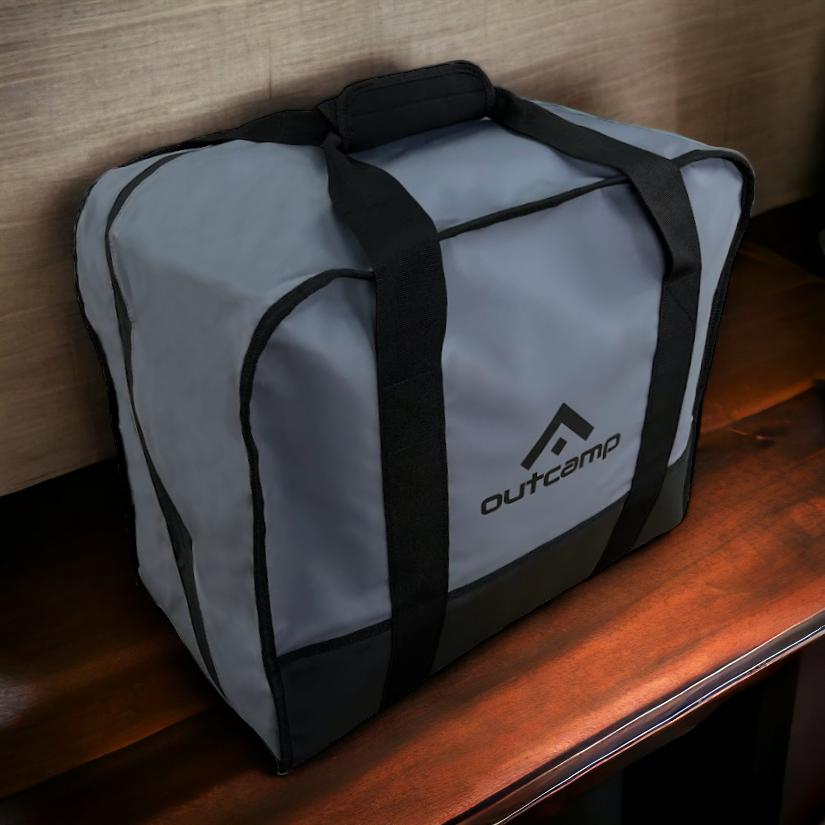
If you're also after a portable Starlink for the caravan or 4WD, check our Starlink Mini Accessories collection — purpose-built mounts, power cables and cases for Aussie touring conditions.




Leave a comment (all fields required)