
The Starlink App — A Complete Guide to Every Feature and How to Use Them
The Starlink app is the control centre for everything related to your Starlink service. Most users download it during initial setup, connect their dish, and then barely open it again — which means they are missing out on tools that can significantly improve their experience, save power, manage data, and troubleshoot problems.
This guide walks through every useful feature in the Starlink app, explaining what each one does and when to use it. Whether you are a new Starlink owner or have been using it for months, there is almost certainly something in the app you have not explored yet.
Setup and Initial Configuration
The app is available for iOS (iPhone and iPad) and Android, and is required for initial Starlink setup. You cannot configure your Starlink dish without it. Download it before your first trip — ideally while you still have reliable internet at home — so you are not trying to download an app at a campsite with no connectivity.
Account creation and plan activation should also be done at home via the app or the Starlink website. Once your account is active and your hardware is registered, the app guides you through the physical setup process with step-by-step instructions.
The Obstruction Checker
The obstruction checker is arguably the most valuable tool in the app for campsite users, and it is available before you even power on your dish. It uses your phone's camera and motion sensors to map the sky from any position, showing you which areas are obstructed by trees, structures, or terrain and estimating the impact on your Starlink connection.
To use it, open the app and navigate to the obstruction tool (found in the setup or tools section, depending on your app version). Hold your phone flat and slowly sweep it in an arc overhead, following the on-screen guide. The app builds a visual map of your sky view, showing clear areas in green and obstructed areas in red.
The key number to look at is the estimated obstruction percentage. Under 2 per cent gives excellent performance. Under 5 per cent is good. Above 10 per cent and you will notice regular dropouts. Use the tool to compare several positions at your campsite before committing to where you place the dish. A 30-second scan at each spot can save hours of frustration with a poorly positioned dish.
Wi-Fi Network Configuration
During initial setup, the app prompts you to name your Wi-Fi network and set a password. Choose a name you will remember and a password that is easy to type on a phone — you will enter it on every device you connect. These credentials persist between sessions, so you only set them once.
After initial setup, you can change your network name and password at any time through the app's network settings. If you forget your password, the app displays it in the network settings section (as long as your phone is currently connected to the Starlink network).
The app also lets you configure whether your network broadcasts on 2.4 GHz, 5 GHz, or both. For most users, the default dual-band setting works well. In congested environments like busy caravan parks, switching to 5 GHz only can reduce interference from neighbouring networks.
Monitoring and Diagnostics
The app provides several monitoring tools that give you real-time insight into how your Starlink is performing. These are useful for ongoing performance awareness and essential for troubleshooting when something is not working right.
Getting familiar with these screens before you need them means you can quickly identify and address issues in the field rather than fumbling through unfamiliar menus when your internet stops working.
Speed Tests
The built-in speed test measures your connection speed at two levels: the speed between the dish and the satellite network, and the speed between your connected device and the router. Running both tells you whether a performance issue is on the satellite side (dish placement, congestion, weather) or the Wi-Fi side (distance from router, interference, device limitations).
If the dish speed test shows 120 megabits per second but your device speed test shows 40 megabits per second, the bottleneck is your Wi-Fi connection, not the satellite. Moving closer to the router, switching to 5 GHz, or using an ethernet cable would improve your actual experience. If the dish speed test itself shows low numbers, the issue is upstream — obstructions, congestion, or weather.
Speed tests are best run at different times of day to understand the performance pattern at your location. Morning speed versus evening speed helps you identify whether peak-time congestion is affecting your experience and plan your data-intensive activities accordingly.
The Obstruction Map (Live)
Once the dish has been running for 10 to 15 minutes, the app generates a real-time obstruction map showing exactly where signal is being blocked. This is different from the pre-setup obstruction checker — it shows actual signal blockage based on the dish's live operation rather than a camera-based estimate.
The live obstruction map is more accurate than the camera tool and shows the real-world impact of obstructions on your connection. Red zones indicate directions where satellites are being blocked. If the map shows heavy red in one direction, you know that repositioning the dish to reduce obstruction in that specific direction will improve performance.
This map updates continuously, so you can reposition the dish and watch the map improve (or worsen) in real time. It is the most precise tool available for optimising dish placement at a campsite.
Data Usage Monitoring
For users on the Roam 100GB plan, the data usage section of the app is essential. It shows your total data consumption for the current billing cycle, updated in near-real-time. This is the authoritative source for your data usage — more accurate than device-level tracking, which may not capture all network traffic.
Check this screen regularly (daily or every few days) to track your consumption rate. If you are burning through data faster than expected, the early warning gives you time to adjust habits — reducing streaming quality, disabling background syncing, or downloading content via alternative Wi-Fi when available.
Power and Device Management
The app includes several features for managing your Starlink's power consumption and connected devices — particularly useful for off-grid users who need to conserve battery, and for anyone who wants control over their local network.
These features are often overlooked but can make a meaningful difference to your experience, especially on extended trips.
Sleep Schedule
The sleep schedule feature lets you program the Starlink to power down automatically during specified hours. This is designed for power conservation — if nobody uses internet between midnight and 6am, turning the dish off for those hours saves 150 to 450 watt-hours of battery per night (depending on your model).
Set up a sleep schedule through the app by specifying the hours you want the dish to be off. The dish shuts down at the start of the sleep period and automatically powers up at the end. You can adjust or disable the schedule at any time.
For off-grid campers running from battery, the sleep schedule is one of the most effective power-saving tools available. Six hours of sleep per night saves roughly enough energy to run the Mini for an additional 4 to 6 hours the following day. Over a week of camping, that saving adds up to a meaningful extension of your off-grid capability.
Connected Devices
The network section of the app shows all devices currently connected to your Starlink Wi-Fi, along with data usage per device. This is useful for identifying which devices are consuming the most data, checking whether unknown devices have connected to your network, and managing your household's usage.
If you spot a device consuming unexpected amounts of data (often a phone running background updates or a tablet streaming video), you can investigate and restrict its behaviour. In family camping scenarios, this visibility helps manage the collective data budget.
Stow Mode
Before transporting your dish — packing up camp, driving to a new location, or storing the unit — use the stow function in the app. This tells the dish to enter a safe transport mode, orienting any movable components to their most protected position.
For the Mini, stowing is simple — the unit is already flat and transport-ready by design. The stow function is more relevant for the Gen 3 and older dish models with motorised elements, but it is good practice to stow any model before disconnecting power and packing up.
Account and Plan Management
The app is also where you manage the business side of your Starlink service — plans, billing, and support. These functions are less exciting than the technical tools but equally important for managing your Starlink effectively.
Knowing where to find these settings saves time when you need to make changes, especially if you are in a remote location and need to adjust your plan or access support.
Changing Plans
You can switch between Starlink plans through the app's account section. Changes typically take effect at the start of your next billing cycle. If you are transitioning from Residential to Roam for a trip, or switching between Roam 100GB and Unlimited, the app handles the change without any hardware modifications.
Some users switch plans seasonally — Residential at home during the months they are not travelling, and Roam during their travel season. The ability to manage these transitions from the app without contacting support makes it painless.
Pausing Your Service
If you are not using your Starlink for an extended period — off-season, between trips, or while the unit is in storage — you can pause your service through the app. Pausing stops billing while maintaining your account. When you are ready to use Starlink again, reactivating through the app brings your service back online.
This is particularly valuable for seasonal campers and holiday travellers who only use Starlink for a few months per year. Rather than paying monthly fees year-round, you pause during the months you are not travelling and only pay when the service is active.
Support and Troubleshooting
Starlink's customer support is accessed exclusively through the app — there is no phone number. The support section includes a troubleshooting guide, FAQs, and the ability to submit a support ticket. When submitting a ticket, include details of your issue, what you have already tried, and screenshots if relevant. This speeds up the response.
Response times from Starlink support are typically 24 to 48 hours. For urgent issues, the troubleshooting guide in the app often provides the answer faster than waiting for support. The community forums and online Starlink user groups are also excellent resources for quick answers to common problems.
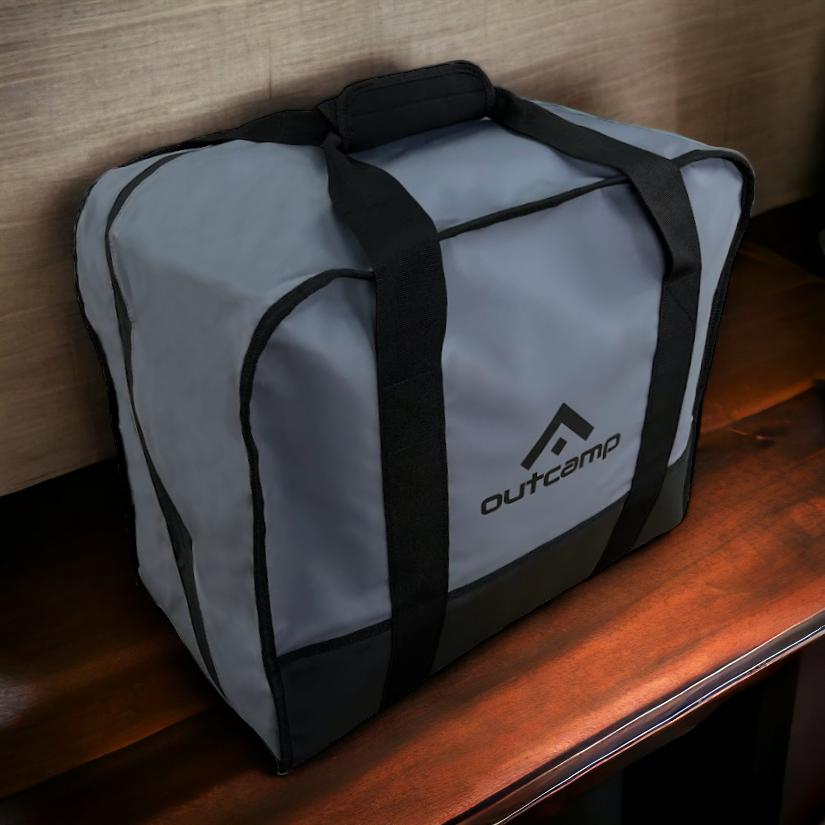
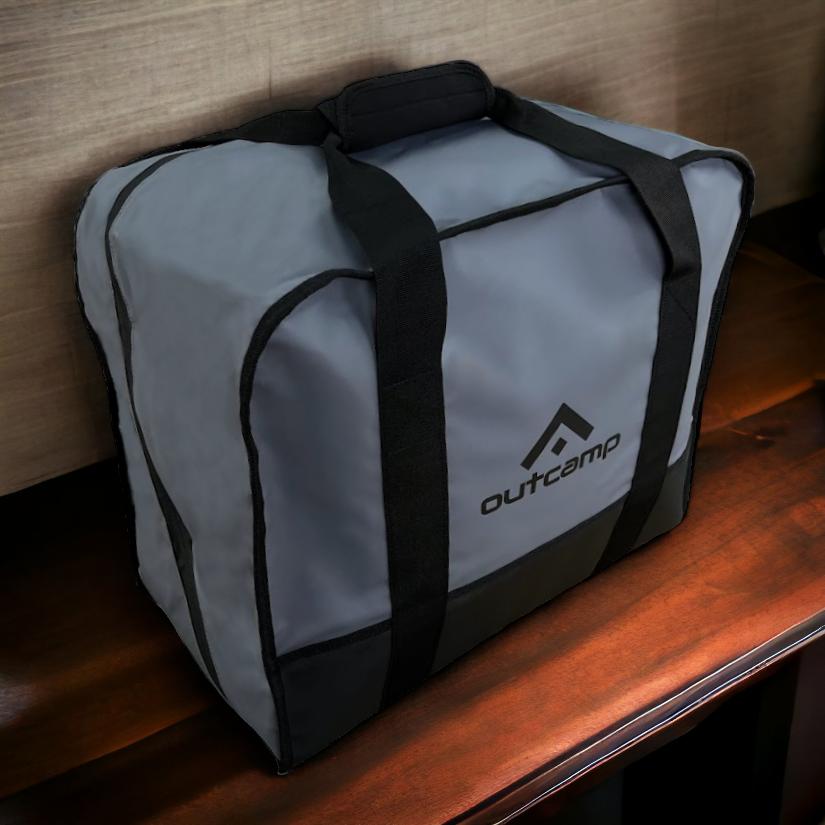
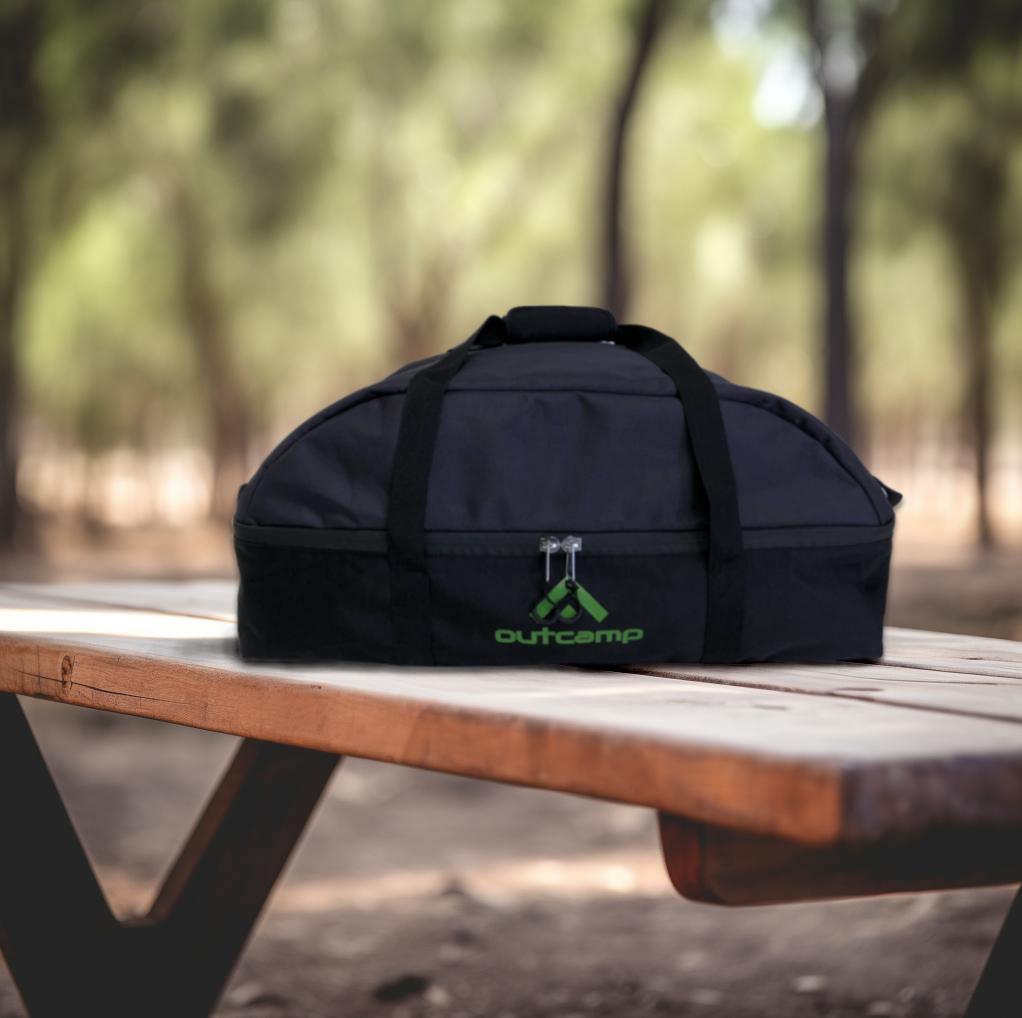
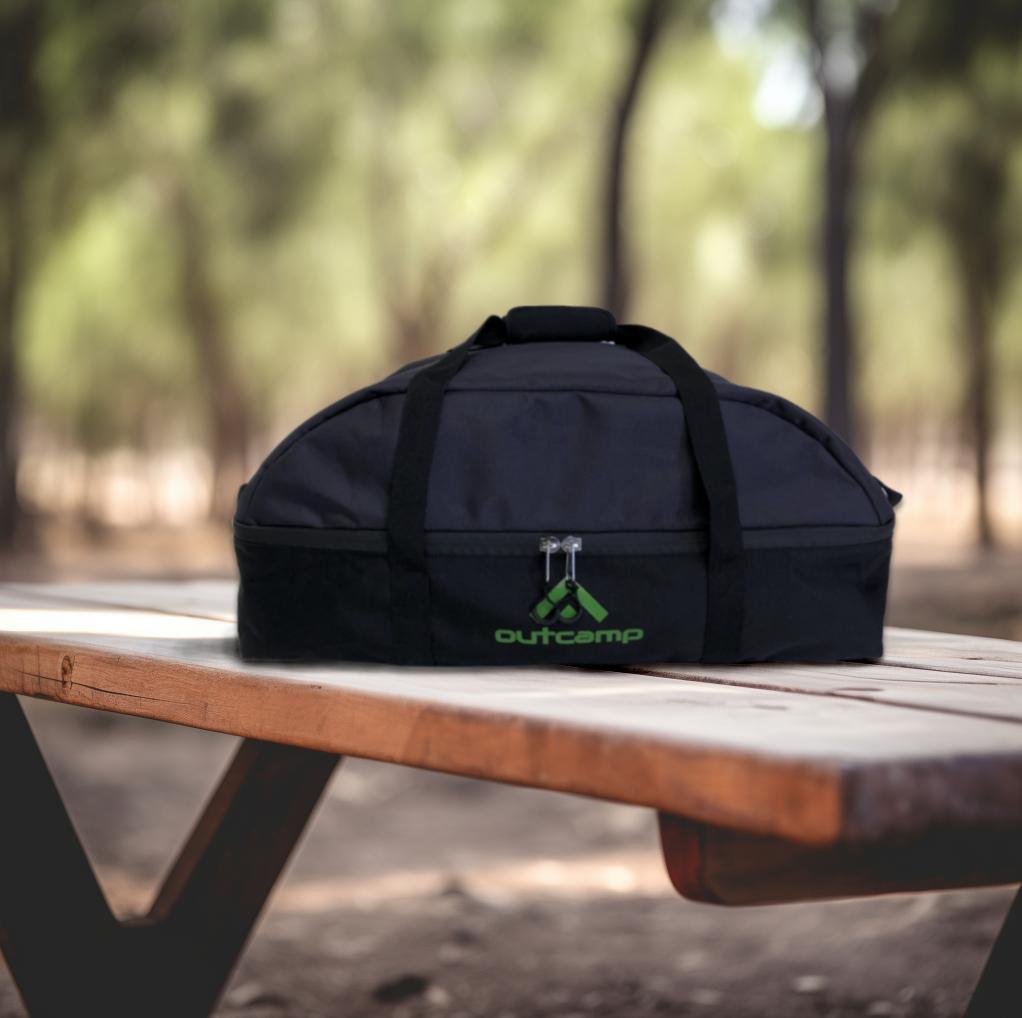
For Starlink mounts, power cables, carry cases, and all the accessories that complement your Starlink app-managed setup, explore the Outcamp range designed for Australian outdoor use.